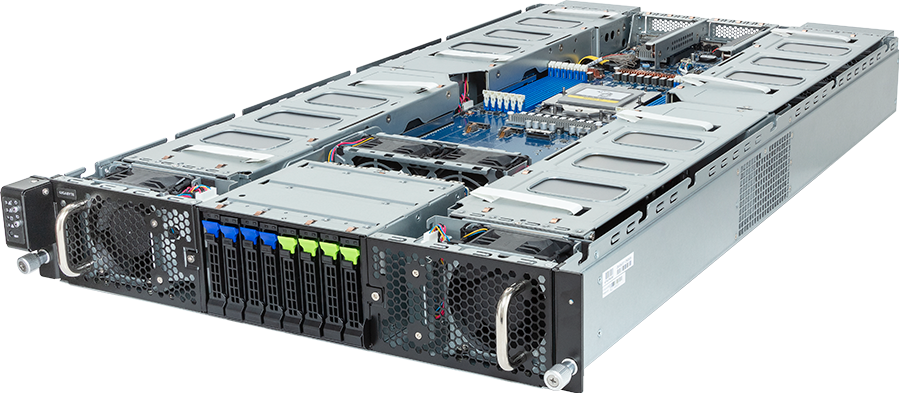
A firmware update should not be the first experiment performed on a new GPU server. Before changing anything, identify every controller in the system, record its current version and decide which vendor-tested release set the machine is meant to run.
That distinction matters. A GPU server does not have one piece of firmware. It may have a system BIOS or UEFI, a baseboard management controller, one or more CPLDs, GPU VBIOS, network-adapter firmware, NVMe firmware, storage-controller firmware and code on backplanes or power hardware. Updating one component without checking its dependencies can leave the server in a combination the manufacturer has not tested.
The safe baseline is therefore an approved version matrix for an exact chassis, hardware configuration and workload, plus evidence that the server still exposes the expected devices after the change. It is not simply "install the latest version".
This guide provides a vendor-neutral commissioning method for one server or a fleet. The exact model's service manual, release notes, support matrix and update recipe always take precedence. Firmware work can restart the host, reset settings or make a component unavailable if power or the update process is interrupted. Use a maintenance window, a recovery path and a representative canary system before touching production nodes.
Know which firmware domains you are changing
The word firmware often hides several independent change domains:
| Domain | What it controls | What can go wrong after a poor update | | --- | --- | --- | | System BIOS or UEFI | CPU initialisation, memory training, PCIe resource allocation, boot and platform settings | missing devices, boot failure, changed power behaviour or reset settings | | BMC | out-of-band management, sensors, fans, remote console and power control | lost management access, incorrect sensor readings or fan-control faults | | CPLD or FPGA | board sequencing, power control and platform-specific logic | component initialisation or power-sequencing failure | | GPU VBIOS | accelerator initialisation and board behaviour | GPU not enumerated or unsupported firmware combination | | NIC, DPU or HCA firmware | network link, protocol offload and adapter features | link failure, feature mismatch or driver incompatibility | | NVMe, HBA or RAID firmware | local storage and boot-device behaviour | missing drives, changed controller behaviour or data-path risk | | Backplane, retimer or PSU firmware | signal conditioning, drive paths and power hardware | intermittent PCIe or storage faults that are hard to diagnose |
Not every server exposes every domain, and not every component is updated through the same interface. An OEM bundle may cover much of the platform while a GPU, network adapter or storage device still needs a separate package. Treat the bundle contents as evidence, not an assumption.
NIST SP 800-193 frames platform-firmware resilience around protection, detection and recovery. That is a useful commissioning test: use trusted packages, detect whether the intended version and configuration actually took effect, and know how the platform can recover before beginning the change.
Build the version matrix before downloading packages
Start with the delivered machine, not with a vendor download page. Record the exact model, motherboard or baseboard revision, serial number, CPU type, memory layout, GPUs, network adapters, storage controllers and boot devices. Then capture the current firmware version for each component the management interface can report.
A useful record looks like this:
| Component | Device identity | Delivered version | Approved target | Package or recipe | Result | | --- | --- | --- | --- | --- | --- | | BMC | controller generation | version and build | version and build | vendor URL and checksum | pending/pass/fail | | BIOS/UEFI | board revision | version and date | version and date | vendor URL and checksum | pending/pass/fail | | CPLD/FPGA | board component | reported version | approved version | package dependency | pending/pass/fail | | GPU | exact SKU and count | VBIOS per device | approved version | OEM or GPU-vendor route | pending/pass/fail | | Network | exact adapter and port count | firmware per device | approved version | adapter/OEM package | pending/pass/fail | | Storage | controller and drive models | firmware per device | approved version | controller/OEM package | pending/pass/fail |
Add the release-note date, package hash where supplied, change owner, maintenance window and rollback or recovery method. For a cluster, include a node-profile identifier so later servers can be compared with the approved canary.
Do not infer a target from version numbers alone. Check that the package applies to the exact server model and board revision, whether intermediate updates are required, whether settings are preserved, and which components need a host restart or removal of auxiliary power.
NVIDIA's current DGX GB200 and GB300 guidance, for example, requires the software-and-firmware recipe for the installed release and distinguishes BMC and compute-tray packages. It also documents component-specific power-cycle requirements. Dell's PowerEdge guidance publishes a recommended sequence beginning with iDRAC, then BIOS and CPLD or FPGA before other components. These are product-family instructions, not universal sequences. Use them as examples of why the order must come from the manufacturer of the system being updated.
Establish the recovery path first
Before the maintenance window, answer five questions:
1. Can an operator reach the BMC through a tested management path if the host does not boot? 2. Is a local or remote console available to observe POST rather than waiting for the operating system? 3. Is the previous supported package available, and does the platform actually support rollback? 4. Does the board have a documented recovery mechanism, dual image or service procedure? 5. Who can provide physical assistance if the BMC, network or boot path becomes unavailable?
Export the existing BMC configuration and BIOS settings using the vendor-supported method. Screenshots can help during comparison, but a machine-readable export is better when the platform provides one. Keep the original event log before clearing transport or commissioning entries.
Do not assume that an old BIOS configuration file is safe to import into a newer major release. Options can be renamed, removed or given different defaults. Compare settings after the update and recreate only the decisions that still apply.
Power quality is part of the recovery plan. Confirm redundant supplies, stable feeds and the required host state. Stop GPU jobs, monitoring actions that can interfere with updates and any automated reboot or remediation policy. NVIDIA's DGX H100 and H200 procedure explicitly tells operators to stop GPU activity before firmware work because an active workload can interfere with the process.
Select a BIOS baseline from workload requirements
There is no single high-performance BIOS template for every GPU server. The right baseline preserves device enumeration and satisfies the selected operating model without changing unrelated settings.
Settings that usually need an explicit decision
| Setting | Decision to record | Why it is not universal | | --- | --- | --- | | UEFI boot mode | approved boot mode and boot-device order | legacy modes can complicate modern security and large-device support, but migration affects an existing OS | | Secure Boot | enabled, disabled or deferred with reason | signed bootloaders and kernel modules are required when enabled; external driver sources can break the trust chain | | TPM | enabled and ownership policy | needed for measured-boot or attestation designs, but must fit the organisation's key-management process | | Above 4G Decoding | enabled where required by the platform | dense GPU and adapter configurations may need large PCIe address space; follow the OEM setting name and guidance | | Resizable BAR | enabled only for a validated workload and platform | some GPUDirect and large-memory-transfer paths depend on it, but support must be checked across GPU, firmware, driver and application | | IOMMU / Intel VT-d / AMD-Vi | enabled when required for isolation, passthrough or the platform design | a bare-metal workload may not need the same setting as a virtualised or DPU-backed environment | | SR-IOV | enabled only for adapters and software that use it | enabling a feature without an owner adds complexity and does not improve ordinary traffic | | Power profile | vendor-validated balanced or performance profile for the workload | forcing every power and C-state option to maximum can increase energy use and heat without proving application benefit | | NUMA and memory options | OEM-supported setting for the CPU, DIMM population and scheduler | topology changes can alter locality; the correct choice depends on workload placement and software |
For GPU passthrough or virtual GPU deployments, NVIDIA's Windows Server guidance calls for CPU virtualisation, IOMMU, SR-IOV and Above 4G Decoding in the relevant design. That does not mean every bare-metal training node should copy the same list. Likewise, NVIDIA GPUNetIO documents Resizable BAR requirements for particular GPUDirect data paths; it is evidence for those paths, not a general promise of higher performance.
If a setting cannot be tied to a requirement, leave the vendor default in place and record that decision. A smaller baseline is easier to test, compare and support.
Use a canary update, even for one rack
Choose a representative server with the same board revision, GPU set, network adapters, storage and cooling method as the rest of the group. If the fleet contains material hardware differences, each profile needs its own canary.
Run the update in the documented order and record the start and completion status for each component. Do not queue unrelated changes into the same window. A firmware update, BIOS tuning exercise, operating-system upgrade and driver replacement performed together create too many possible causes when the server behaves differently afterwards.
Where the vendor tool offers a dry run, compatibility check or inventory comparison, use it. NVIDIA's DGX GB platform tooling includes a dry-run path to show the components selected for an update. Other OEMs provide catalogue-driven lifecycle tools. The interface differs, but the principle is the same: inspect the proposed action before flashing the device.
Wait for the tool and the hardware to report completion. A browser progress bar reaching 100 per cent does not prove that every controller has restarted or that an auxiliary power cycle has occurred. Follow the exact warm reboot, cold reboot or standby-power removal instruction in the release notes.
Verify hardware before installing the driver
The first verification pass should not depend on the NVIDIA driver being present. Watch POST and review the BMC inventory, sensors and event log. Confirm that the expected CPUs, memory, GPUs, network adapters and storage devices are visible.
On a Linux installation or rescue environment, read-only inventory commands can provide a useful second view:
``bash sudo dmidecode -t bios sudo dmidecode -t system sudo lspci -nn sudo lspci -tv lsblk -o NAME,MODEL,SERIAL,SIZE,TYPE ``
If Secure Boot is part of the baseline, confirm its state after the operating system is installed:
``bash mokutil --sb-state ``
These commands do not replace the OEM inventory. They help prove that devices reached the operating system and that the PCIe tree still resembles the delivered configuration. Save the output before and after the update and compare device counts, identities and topology.
Check the system event log for new PCIe, memory, power, thermal, fan or firmware errors. Clear an event only after it has been exported and explained. A clean dashboard with a deleted log is weaker evidence than a retained log with a resolved commissioning note.
Only after this platform gate passes should the team install the operating system driver stack. Choose a supported operating system, kernel and NVIDIA driver branch for the intended CUDA and application release. "Newest driver" is not a compatibility plan. The next article in this series covers driver, CUDA and Fabric Manager versioning in detail.
Failure symptoms that should stop the rollout
Do not proceed from the canary to the fleet when any of these appears:
- the BMC or BIOS reports a different package result from the update tool;
- one or more GPUs, NICs, NVMe devices or memory channels disappear;
- PCIe links train at an unexpected width or generation;
- the BMC event log gains unexplained critical, power, thermal or bus errors;
- fan control, sensor names or temperatures become implausible;
- Secure Boot or TPM state changes without an approved decision;
- the server repeatedly retrains memory, hangs during POST or changes boot order;
- remote console, virtual media or management networking no longer behaves as tested;
- an identical node produces a materially different inventory after the same procedure.
Pause and preserve evidence. Record the package, tool output, event log, screenshots, power-cycle method and physical state. Escalate against the exact serial number and configuration rather than repeating the update across more nodes in the hope that the issue is isolated.
Turn the canary into a fleet baseline
Once the representative server passes, freeze the approved matrix and use it as a comparison target. Roll out in small batches that the operations team can recover within the maintenance window. Keep enough healthy capacity to run production work and management services while a batch is unavailable.
For every node, retain:
- hardware identity and board revision;
- delivered and target firmware versions;
- package source, checksum and release notes;
- exported BIOS and BMC settings;
- update order, operator and timestamps;
- required reboot or power-cycle evidence;
- before-and-after inventory;
- event-log review;
- exceptions, recovery action and final acceptance result.
The acceptance rule should be explicit: all expected hardware is present, no unexplained critical events remain, management access works, approved BIOS decisions are in place, and the node matches its profile. A green firmware tool alone is not enough.
For a new HGX server, ask the supplier to state the delivered firmware recipe and the supported software release it is paired with. For a configurable PCIe GPU server, the final GPU, NIC and storage choices make the component matrix especially important. GPUMachines can review that complete configuration before the baseline is frozen.
Questions operators ask
Should every component be updated to the latest version?
No. Use the newest version that is approved for the exact platform and intended software stack, including required dependencies and intermediate steps. A later standalone component release is not automatically a tested system combination.
Should BIOS defaults be restored after an update?
Follow the OEM procedure. Some updates require loading new defaults before reapplying approved settings; others preserve configuration. Do not import an old template blindly across a major BIOS change.
Can all servers in a cluster be updated together?
Not safely as a first attempt. Validate a representative canary, then use controlled batches with enough capacity and recovery access remaining. Separate hardware profiles need separate validation.
Must Above 4G Decoding and Resizable BAR always be enabled?
No. Above 4G Decoding is commonly required in dense PCIe systems, while Resizable BAR is required for particular data paths and applications. Use the exact OEM and software guidance for the deployed workload, then verify device enumeration after the change.
When is the firmware baseline complete?
When the approved versions and settings are recorded, the server has completed every required reboot or power cycle, expected devices and topology are present, event logs are understood, management access still works and the evidence is stored for later drift comparison.
Sources and further reading
- NIST SP 800-193: Platform Firmware Resiliency Guidelines
- NVIDIA DGX H100/H200 firmware update steps
- NVIDIA DGX GB200/GB300 firmware update overview
- NVIDIA DGX GB200/GB300 compute-tray firmware process
- Dell PowerEdge firmware update overview and recommended order
- NVIDIA vGPU deployment prerequisites and BIOS settings
- NVIDIA GPUNetIO installation and Resizable BAR guidance
- NVIDIA data-centre driver pre-installation actions
- Ubuntu Server: installing NVIDIA drivers
- Ubuntu Secure Boot documentation
> Configure & price the GIGABYTE G293-Z22-AAP1 → Open the GIGABYTE G293-Z22-AAP1 configurator